Mobile Printer-Print Documents
EZTech Global LimitedProductivity
4.217.00 Reviews
- Version
- 1.1.6
- Installs
- 100.00K
- Age Rating
- Everyone
Screenshots
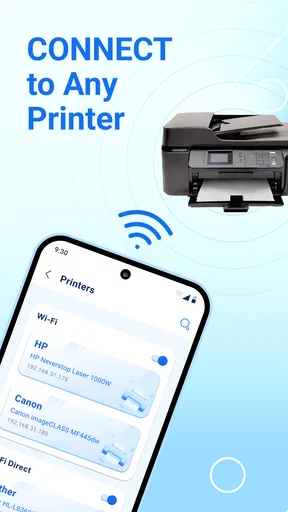
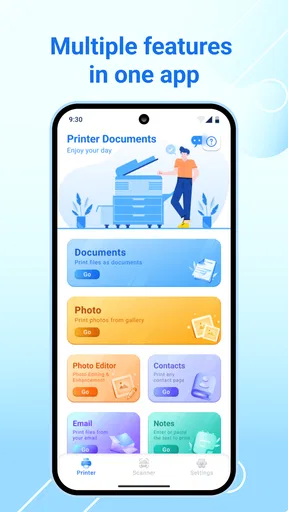
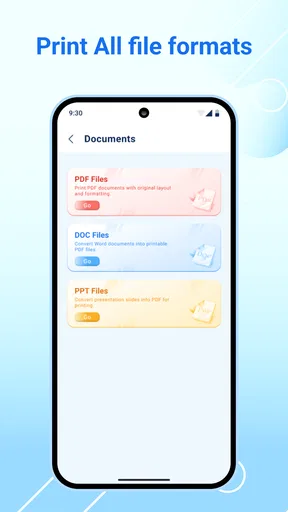
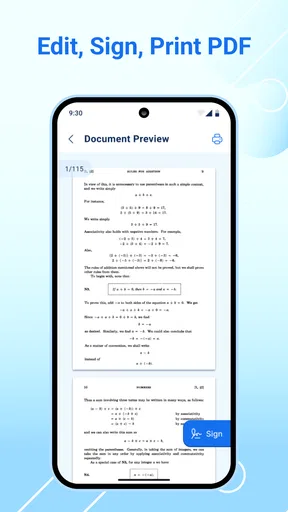
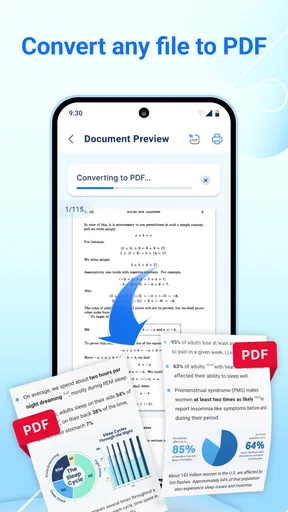
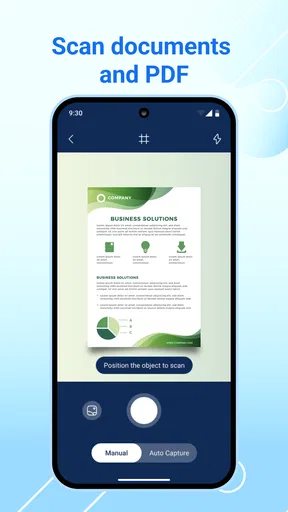
Our Review of Mobile Printer-Print Documents
 Analysis by Appyee
Printing from a phone sounds simple until a document is buried in an email, a photo is saved in the wrong folder, or someone else in the house needs the printer while you are away. I tried Mobile Printer-Print Documents with that shared-device reality in mind, and I found an app aimed at making ordinary mobile printing less dependent on a computer. It is a free productivity app from EZTech Global Limited, with optional in-app purchases ranging from $5.99 to $34.99 per item.
My first impression was practical rather than exciting: this is the kind of tool you open when a physical page is needed quickly. The store summary presents it as an all-in-one printing solution, but the more useful question is whether it fits the way people actually share phones, printers, and documents at home. In my experience, its value depends less on replacing every printing method and more on reducing the number of steps between finding a file and sending it to a compatible printer.
How it works when several people share a printer
A realistic household example is easy to imagine. One person receives a school form as a PDF, another has a boarding document in an email, and someone else wants to print a recipe or a photo. Nobody wants to start a laptop, search for a cable, or take over the computer that another family member is using. A mobile printing app can be useful here because the document already lives on a phone.
I would treat this app as a shared utility rather than a family-management system. It helps with the printing task itself, but it should not be mistaken for a tool that organizes household accounts, assigns permissions, or keeps a shared history for everyone. That distinction matters when several people use the same printer. The person holding the phone is still responsible for selecting the right file, choosing the intended printer, and checking the result.
The strongest everyday use case is a last-minute document. If I need to print a form before leaving home, the mobile route is more convenient than transferring the file to a desktop first. The same applies to a shipping label, a travel confirmation, or a page someone sent through a messaging app. The app earns its place when speed and convenience matter more than advanced document production.
It is also useful for homes where the printer is physically separated from the main computer. A phone can stay with the person preparing the document while the printer sits in another room. That sounds like a small improvement, but it removes a surprisingly common interruption: moving files between devices simply because the printer is attached to one of them.
There is a trade-off, though. Mobile screens are not ideal for checking page breaks, margins, or small text. Before sending anything important, I recommend opening the document in its original viewer and checking the first and last pages carefully. A phone-based workflow is faster, but it can make mistakes less obvious than a larger desktop preview.
The best workflow for a busy home
I found the most sensible routine is to prepare the file before opening the printer app. Save the document somewhere easy to locate, close unrelated files, and decide whether you need the entire document or selected pages. This avoids the rushed situation where several similarly named attachments appear and the wrong one is sent.
For repeated household use, I would also keep a simple verbal habit: say which printer is being used and what is being printed. That is not a feature of the app, but it prevents confusion when several devices appear in the same environment. A mobile tool can make sending a job easier while still leaving coordination to the people using it.
Another useful habit is to print a test page when connecting to an unfamiliar printer or changing networks. This is especially sensible before printing a multi-page form. A small test can reveal a connection or layout problem before paper and ink are wasted. The app makes mobile access more convenient, but it cannot remove the physical limitations of the printer itself.
Setup boundaries and what to expect before printing
My advice is to approach setup with realistic expectations. The app is not a replacement for a printer, paper, ink, or a working connection between the phone and the printer. It sits in the middle of that chain. If the printer is unavailable or the phone cannot reach it, the app cannot make the hardware respond.
The current version is 1.1.6, and the app supports devices running Android 7.0 or later. That gives it a broad compatibility range for Android users, including older phones that may still be used around the house. I would still check the phone itself before relying on it for an urgent job, particularly if the device is old, has limited storage, or is managed by someone else in the household.
One boundary that deserves attention is the difference between a personal phone and a shared phone. On a personal device, the person printing usually knows where documents came from and who should see them. On a shared device, recently opened files, downloaded attachments, and photos may belong to different people. I would avoid leaving sensitive documents open after printing and would return the phone to its normal state once the task is complete.
This is not a reason to avoid the app. It is simply a reminder that convenience changes the workflow. Printing directly from a phone can be quicker, but it also puts document selection and privacy decisions in the same small space. A laptop may feel slower while offering a larger screen and clearer separation between users.
For a first attempt, I would begin with a non-sensitive, short document. Confirm that the printer responds correctly, inspect the output, and only then use the app for tax paperwork, identification documents, medical information, or anything containing personal details. That staged approach is more dependable than discovering a problem with an important document.
Where the usual alternatives still win
The built-in print function on Android may be enough for people who only print occasionally and already have a printer that works well with the phone. In that situation, adding another app can feel unnecessary. The advantage of a dedicated printing tool is convenience across common document tasks, not an automatic guarantee that every printer or file type will behave perfectly.
A desktop printer utility can be the better choice for detailed settings, maintenance, scanning combinations, or office workflows. If I need to manage paper trays, handle unusual page sizes, or prepare a long, carefully formatted report, I would rather use the printer maker’s desktop software or a computer. A mobile app is at its best when the job is straightforward and the document is already on the phone.
Cloud storage can also be a better starting point for a household that shares files regularly. A family folder makes it easier to find the latest version of a document, while a printing app focuses on the final step. I would use both approaches together when needed: organize the file in the storage service, then send the finished version from the phone.
The important trade-off is speed versus control. Mobile Printer-Print Documents is more appealing when I want fewer device changes. A computer remains preferable when I need a large preview, extensive editing, or a carefully managed office process.
Coordination, accounts, and everyday trust
Shared-device use raises questions that are easy to overlook. Who is allowed to print? Which documents are private? Who notices when the paper tray is empty? The app does not solve those household agreements, so I would establish them separately. A simple rule such as “announce sensitive printing” can prevent someone from collecting the wrong pages or seeing information meant for another person.
I would also avoid assuming that the app creates separate personal spaces for each household member. If several people use one phone, the safest approach is to treat the device as a temporary workstation: open one person’s file, print it, verify the pages, and then close it before the next person takes over. That keeps the workflow understandable without imagining account boundaries that may not exist.
For a shared printer, timing matters. A person printing a long document should tell others before starting, while someone printing a single page should still check whether another job is already underway. Mobile access makes it easy for several people to send jobs from different rooms, which is convenient but can also make the queue less visible. Good communication remains more reliable than assuming everyone sees the same printer status.
There is a practical privacy tip I consider especially important: collect pages promptly. A printed document can be more exposed than a digital one because it may sit in a tray where anyone can read it. This matters for school records, work forms, travel documents, and anything containing contact details. The app makes sending the job easier; the household still needs a habit for retrieving the result.
Another useful distinction is between permission to use the printer and permission to access the document. A child might be allowed to print a worksheet, while an adult’s financial file should remain private. Since the app is a productivity tool rather than a substitute for household rules, I would keep important files in personal storage and avoid handing an unlocked phone to someone who only needs to print one page.
Useful routines for different household members
For adults, the app is most useful when a document arrives unexpectedly and the phone is already in hand. For older relatives who are comfortable with basic phone tasks but dislike moving files to a computer, the shorter workflow may be easier to understand. I would prepare the printer connection in advance and practice with a harmless document rather than introducing the app during an urgent situation.
For children, I would use it with supervision when the document is school-related. The key lesson is not simply how to tap print, but how to check the filename, page count, and destination first. That turns the app into a small exercise in digital responsibility instead of a button that sends unknown material to a shared printer.
For guests, I would be more cautious. If someone needs to print a ticket or form, I would prefer to help select the file and collect the pages personally. That keeps personal documents separate and avoids leaving a guest to explore files stored on a shared phone. The app can support the task without giving anyone broader access to the device.
For a home office, the app is a convenient backup rather than my only printing method. If work documents are frequent, I would still keep a computer-based workflow available for review and organization. The mobile option is valuable when the computer is occupied or the document arrives through a phone-first channel, but it should not encourage rushed handling of confidential material.
Age context and the limits of trust
The app is rated for Everyone, which makes it approachable for a broad household audience. That rating does not mean every printing situation is equally suitable for every age. The interface may be simple enough for basic tasks, but judgment is still needed when a file contains personal information or when multiple printers are available.
I would be comfortable letting a responsible older child print a clearly identified worksheet after showing them the routine. I would not treat the age rating as a reason to give unrestricted access to an unlocked family phone. The safer boundary is task-based access: provide the document, supervise the destination, and make sure the pages are collected afterward.
Trust also applies to the printer itself. In a home, the printer may be shared by people who trust one another. In a workplace, dormitory, rental property, or public setting, the printed pages may be visible to strangers. In those environments, I would think carefully before sending personal documents from the app, even if the printing process appears convenient.
Because the app is free to install but includes optional purchases, I would also make the payment boundary clear on a shared device. A child or guest should not be left to explore purchase screens without supervision. The listed purchase range runs from $5.99 to $34.99 per item, so household members should understand that free access and optional paid items are not the same thing.
The app has an average rating of 4.2 from around 253 ratings, and it has passed 100K installs. Those figures suggest that it has found an audience, but they do not replace testing it with the particular phone, printer, and documents used in my home. Printing compatibility is highly dependent on the surrounding setup, so I would judge it by a small real-world trial rather than popularity alone.
The developer, EZTech Global Limited, has positioned this as a general mobile printing utility rather than a specialized family product. That is perfectly reasonable, but it means I would not expect household dashboards, child profiles, or shared approval steps. The app helps with access to printing; the people using it must supply the organization and trust rules.
My household verdict after using it
I see Mobile Printer-Print Documents as a useful convenience for homes that often receive documents on phones and want a simpler path to paper. It is particularly appealing when the printer is shared, the computer is busy, or the person who needs the document is not the person who normally manages the household technology.
I would recommend it to someone who wants a practical mobile route for ordinary documents and is willing to verify the printer connection and output. I would also recommend setting up a clear routine before sharing the phone: identify the file, confirm the destination, print a short test when necessary, collect the pages, and close the document.
I would skip it as my main solution if I regularly need advanced layout control, complex office printing, scanning workflows, or detailed printer maintenance. In those cases, a computer or the manufacturer’s dedicated software is likely to offer better control. I would also avoid depending on it as the only option for urgent, confidential work until I had tested the complete setup.
For a household, the best way to use it is as a shared doorway to the printer, not as a shared filing cabinet. Keep personal documents in personal locations, coordinate before sending jobs, and remember that a phone can make printing faster without making privacy automatic. With those boundaries in place, the app feels genuinely useful rather than merely another shortcut.
My final view is positive but measured. The free entry point makes it easy to try, Android 7.0 support keeps it accessible on older devices, and its focus on mobile documents suits the way many people receive information today. Its real strength is reducing unnecessary transfers between phone and computer. Its main weakness is that the convenience can encourage hurried choices on a small screen. Used thoughtfully, it is a sensible addition to a shared home printer; used without coordination, it can make a simple print job surprisingly confusing.
Verdict
Strengths of Mobile Printer-Print Documents
- Prints documents and photos directly from your mobile device.
- Supports common file formats for convenient everyday printing.
- Simple interface makes basic printing tasks easy to start.
- Useful for home, school, and small-office printing needs.
- Can reduce the need to transfer files to a computer first.
Limitations of Mobile Printer-Print Documents
- Printer compatibility may vary depending on the model and connection method.
- Some advanced printing options may require a paid upgrade.
- Wireless printing can be unreliable on congested networks.
- The app may show ads during use or while selecting print settings.
- Print quality and speed depend largely on the connected printer.
Similar Picks in This Category
View All
Google Calendar
Google LLC4.6

Google Drive
Google LLC4.3

Google Assistant
Google LLC3.9

Microsoft OneDrive
Microsoft Corporation4.6

Samsung Calendar
Samsung Electronics Co., Ltd.4.1

Microsoft OneNote: Save Notes
Microsoft Corporation4.6
Frequently Asked Questions
What is Mobile Printer-Print Documents used for?
Mobile Printer-Print Documents is designed to let you print files, photos, web pages, and other content directly from an Android or iOS device. After installing it, you can select material stored on your phone, preview the pages, adjust basic print settings, and send the job to a compatible wireless printer. It is especially useful when you need a quick print without opening a computer.
Which printers are compatible with Mobile Printer-Print Documents?
Compatibility depends on the printer model, operating system, and connection method supported by the app. In most cases, the phone and printer need to be connected to the same Wi-Fi network, although some printers may support Wi-Fi Direct or Bluetooth. Before downloading, check whether your printer appears in the app’s supported-device list and confirm that its manufacturer provides the required mobile printing service.
Can I print documents and photos from my phone?
Yes, the app is intended for printing common mobile content such as PDF files, office documents, images, and photos. During testing, the available options may vary depending on the file type and the printer being used. You can generally choose paper size, orientation, number of copies, and color or black-and-white printing, but advanced layout controls may not be available for every document.
Does Mobile Printer-Print Documents require an internet connection?
An internet connection may be needed to download the application, access certain online files, display advertisements, or use cloud-based features. However, printing itself can often work over a local Wi-Fi network when the phone and printer are connected to the same router. If you plan to print while traveling, verify whether your printer supports a direct connection and whether the app works without mobile data.
Is Mobile Printer-Print Documents free to use?
The application may be available as a free download, but some features can depend on advertising, in-app purchases, subscriptions, or the printer’s own services. The final cost can also include paper, ink, and any charges associated with cloud storage or third-party printing platforms. Review the app-store listing carefully before installing, especially if you need unlimited printing or advanced document options.
